
License
Trial, activation, refresh, and device management.
This page explains how SnapAct licensing works in the app, and how to activate / refresh your license.
Trial
- SnapAct includes a 14-day free trial .
- When the trial ends, a valid license is required to continue using gated features.
Activation
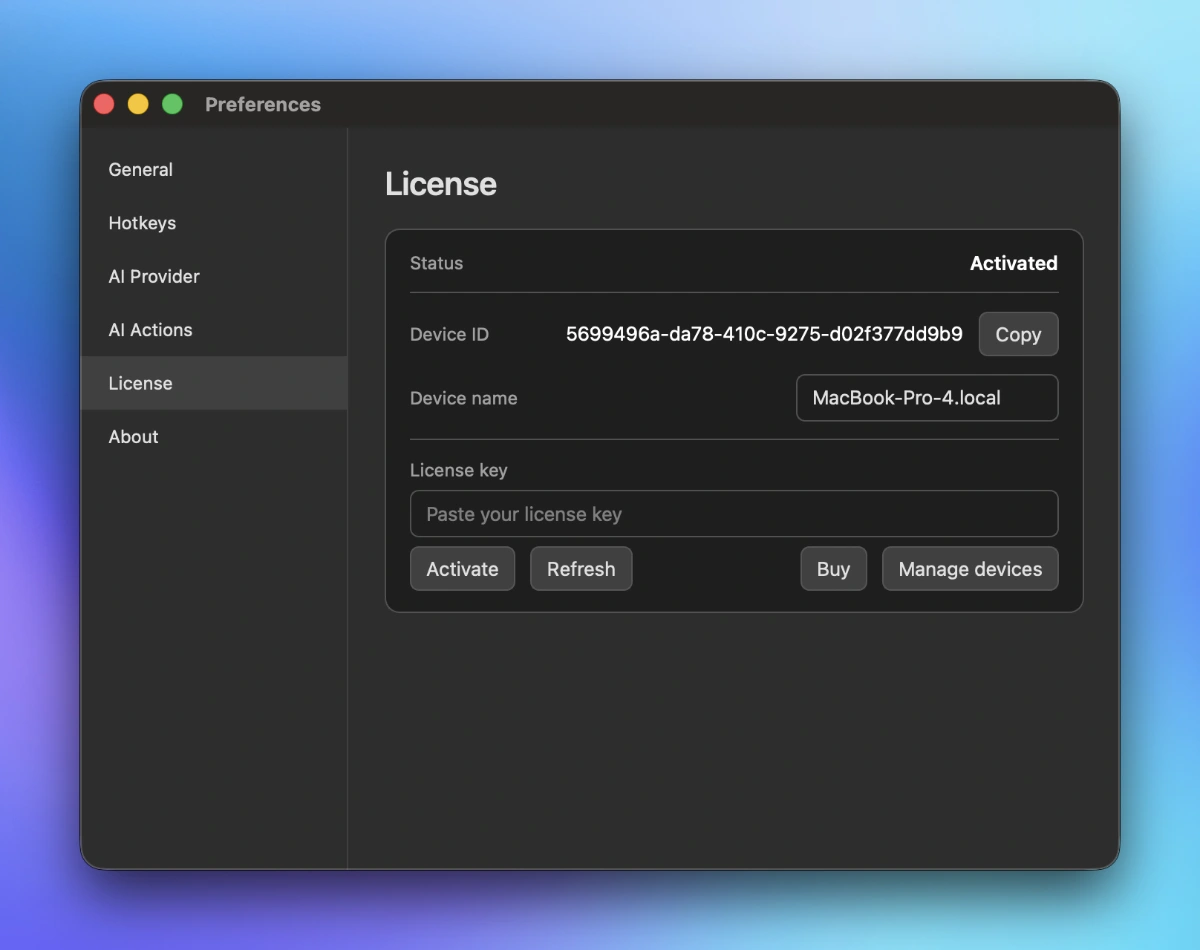
Open Preferences → License, then:
- (Optional) Edit Device name to something you can recognize in your account.
- Paste your License key.
- Click Activate.
If activation succeeds, the status becomes Activated.
What you see in the License page
- Status:
Trial,Trial Expired,Activated, orActivated (offline). - Trial: remaining days (only shown before activation).
- Device ID: a unique identifier for your device. You can click Copy and use it for support/troubleshooting.
- Device name: editable label for this device.
- License key: paste the key here.
- Buttons:
- Activate: activates this device with your license key.
- Refresh: refreshes your license status.
- Buy: opens the pricing page.
- Manage devices: opens the device management page in your account.
Device limits & device management
- A single license can be used on multiple devices, up to the device limit for that license.
- If activation fails due to device limits, open your account and revoke an old device:
- Devices page: /account/devices
- Licenses page: /account/licenses
Troubleshooting
- Activation Failed / Refresh Failed: check your network connection and try again.
- No license token: you must activate first (paste a license key and click Activate).
- Still stuck? Copy your Device ID and contact support.
Privacy
During activation/refresh, SnapAct sends basic license/device information (device id, device name, platform, OS/app version). See the Privacy Policy for details.
Device limits
Device limits are enforced server-side. You can manage active devices from your account page.